
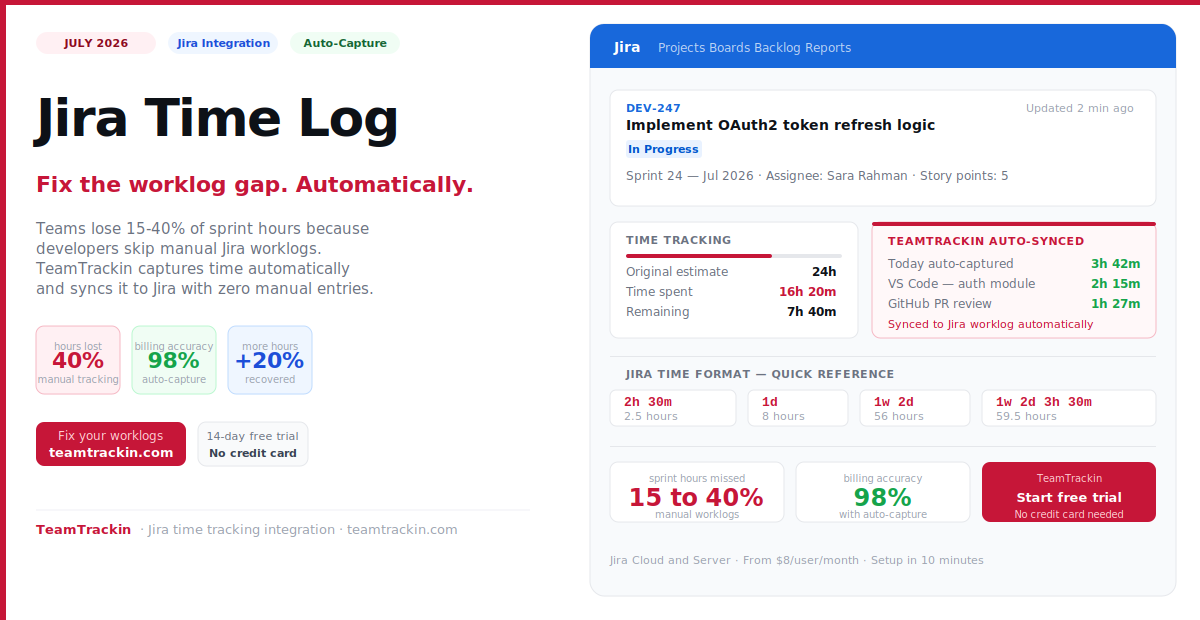
Jira's built-in time tracking asks your team to manually fill in the Time Spent field — and most of them don't. Teams relying on manual Jira worklogs miss an estimated 15–40% of the hours their developers actually spend. This guide covers how to log time in Jira natively, why worklogs stay empty, and how to fix it permanently with automatic capture.
of sprint hours missed by teams using manual Jira worklogs
billing accuracy achieved after switching to automatic Jira time capture
manual Time Spent entries needed with TeamTrackin's auto-sync to Jira
more billable time recovered by teams switching from manual to automatic tracking
To log time in Jira, open the issue, find the Time Tracking section in the right sidebar, click Log Work, enter the time using Jira format (for example 2h 30m), set the date, and click Save. If the Log Work button is missing, time tracking needs to be enabled by your Jira admin in Project Settings.
However, Jira's native worklog is not a tracking system — it is a manual data entry field. Most developers skip it. The result is sprint burndowns with missing data, sprint estimates that never improve, and billable hours that are permanently lost. TeamTrackin solves this by capturing development time automatically and syncing it to Jira worklogs — without requiring a single manual Time Spent entry.
How to Log Time in Jira — Step by Step
Jira's native time tracking allows users to manually log work against individual issues. Here is the complete process for logging time in Jira Cloud:
- 1Open the Jira issue you worked on
Navigate to the Jira project and open the specific issue. Time in Jira is logged at the individual issue level — you cannot log time against a project or sprint directly.
- 2Find the Time Tracking section in the right sidebar
On the issue detail page, look for the Time Tracking panel in the right-hand sidebar. It shows Original Estimate, Time Spent, and Remaining Estimate. If you do not see it, scroll down or ask your Jira admin to enable the Time Tracking field for your project.
- 3Click Log Work
Click theLog Workbutton (or the stopwatch icon in some Jira views). A dialog box will appear with fields for Time Spent, Date Started, and an optional Description. If the Log Work button is absent, time tracking may be disabled — your Jira admin can enable it under Project Settings → Time Tracking.
- 4Enter the time you spent using Jira format
Type the time in Jira's format. Examples:
2h 30mfor two and a half hours,1dfor one day,45mfor forty-five minutes,1w 2dfor one week and two days. Jira converts days and weeks to hours based on your workspace settings (typically 8 hours per day). - 5Set the date and add a description
Select the date the work was performed — Jira defaults to today, so change this if you are logging time for a previous day. Add a short description of what you worked on. This is optional but valuable for billing evidence and audit trails.
- 6Click Save
Click Save. The hours are added to the issue's Time Spent counter, the Remaining Estimate is updated automatically, and the data feeds into the sprint burndown chart and time reports. The worklog entry is also visible in the issue's Activity section.
To log time in Jira: open the issue, find the Time Tracking section in the right sidebar, click Log Work, enter the time using Jira format (2h 30m, 1d, 45m), select the work date, add an optional description, and click Save. If Log Work is missing, your Jira admin needs to enable time tracking in Project Settings. The logged time feeds the sprint burndown chart and cumulative time reports automatically.
Jira Time Format Guide
Jira uses a specific format for time entries. Understanding it prevents the common mistakes that corrupt worklog data and cause sprint reporting to show incorrect hours.
| Jira Format | Meaning | Converted to hours (8h/day, 5d/week) | Common use case |
|---|---|---|---|
| 45m | 45 minutes | 0.75 hours | Quick task, code review, short meeting |
| 2h | 2 hours exactly | 2 hours | Feature work, bug investigation |
| 2h 30m | 2 hours 30 minutes | 2.5 hours | Half-day task, extended debugging |
| 1d | 1 working day | 8 hours (by default) | Full-day implementation task |
| 1d 4h | 1 day and 4 hours | 12 hours | Complex feature spanning a day and a half |
| 1w | 1 working week | 40 hours (by default) | Sprint-length feature or large epic |
| 1w 2d 3h 30m | 1 week, 2 days, 3 hours, 30 minutes | 59.5 hours | Multi-week feature total |
💡 Important: Jira converts days and weeks to hours based on your workspace's time tracking settings. If your team works 7-hour days, 1d equals 7 hours, not 8. Check Project Settings → Time Tracking to see your workspace's hours-per-day configuration before logging large time blocks.
Why Jira Worklogs Are Always Empty
Every Jira admin has seen it: the sprint ends, the burndown chart is flat, and the Time Spent fields across the board are blank or wildly inaccurate. This is not a discipline problem — it is a design problem. Manual Jira log time is fundamentally incompatible with how development work actually happens.
Engineering work does not happen inside Jira. A developer spends 45 minutes in VS Code fixing a bug, 20 minutes reviewing a pull request on GitHub, 10 minutes discussing the implementation in Slack, and 5 minutes updating the Jira ticket. Of all that time, only the last 5 minutes involves Jira — and that is when they are supposed to remember to open Log Work and enter the previous hour's activity from memory.
They don't. And the cumulative result is that teams relying on manual Jira worklogs consistently miss 15 to 40 percent of the actual hours worked — with the highest leakage in code review, cross-tool communication, and deep-focus coding sessions.
The four most common Jira worklog failure patterns
- End-of-sprint reconstruction: Team members log all their sprint hours on the last day from memory. Data is systematically under-reported and impossible to use for accurate sprint retrospectives.
- Ticket-level friction: Developers must navigate to each individual Jira issue to log time. For a developer working across 6–8 tickets per day, this is too many clicks to sustain consistently.
- Context switching overhead: Every context switch — from VS Code to Slack to GitHub to Jira — is a moment where the timer in someone's head resets. Manual logging requires perfect memory across all of these switches.
- No automation: Jira does not auto-detect which issue is currently active based on what the developer is actually working on. Every minute must be consciously attributed by the user.
Jira Native Time Tracking Limitations
Jira's built-in time tracking is free and works for basic logging, but most teams outgrow it quickly. Here are the specific limitations that push teams to look for a better Jira time log solution:
- ✗No automatic time captureJira does not detect which issue is active based on what you are actually doing. Every minute must be manually attributed through the Log Work dialog — which developers consistently skip.
- ✗No weekly timesheet viewJira has no clean weekly grid where you can see all your time entries across multiple issues in one place. You must navigate to each issue individually to review or edit a worklog.
- ✗No billable / non-billable classificationNative Jira worklogs have no billable flag. For agencies and service teams that need to invoice clients based on Jira time data, this is a critical missing feature.
- ✗No approval workflowAny user with Log Work permissions can add, edit, or delete worklogs without manager review. There is no sign-off process before time data flows into reports or billing.
- ✗Limited cross-project reportingJira's native reports cannot easily aggregate time across multiple projects or show team utilisation rates. You need to export data or build custom dashboards to get usable insights.
- ✗No billing rates or invoicingJira stores time as hours — it has no concept of billing rates, client budgets, retainer allocations, or invoice generation. Teams that bill by the hour need a separate tool for all financial reporting.
- ✗No tracking outside JiraWork that happens in VS Code, GitHub, Figma, Slack, or Confluence is never captured in Jira worklogs unless someone manually logs it. This is where the 15–40% gap comes from.
Fix your Jira worklogs automatically.
TeamTrackin captures time in the background and syncs it to Jira — no manual entries needed.
The Automatic Fix: How TeamTrackin Fills Jira Worklogs
TeamTrackin solves the Jira worklog problem by reversing the sequence. Instead of asking developers to remember their hours and manually enter them into Jira, TeamTrackin captures time automatically across every tool in the stack — then syncs the clean, approved data to Jira.
TeamTrackin runs in the background and detects which Jira issue or project is currently active based on browser tab URLs, application context, and work session patterns. When a developer has DEV-247 open in Chrome and VS Code, TeamTrackin logs time to that issue automatically. When they switch to GitHub for a code review on a different branch, TeamTrackin maps that to the relevant PR and Jira issue. All of it is captured without a single manual timer — then pushed to Jira worklogs once the developer approves their weekly timesheet.
Jira issue detection
Detects which Jira issue is active based on your open browser tabs, Jira URL patterns, and application context — and logs time against that specific issue automatically.
Cross-tool capture
Captures time spent in VS Code, GitHub, Figma, Slack, and Confluence — all the places where development work happens outside Jira — and maps each session to the right issue.
Weekly review and approval
Developers review auto-generated timesheets weekly, correct any mis-attributed entries, and submit for manager approval. Total time: 10–15 minutes per person per week.
Jira worklog sync
Approved time entries sync directly to Jira worklogs — populating the Time Spent field and feeding sprint burndown charts, velocity reports, and project time summaries automatically.
Billable classification
Every time entry is classified as billable or non-billable before syncing to Jira — so client-facing work and internal overhead are tracked separately from the point of capture.
Sprint analytics
Real-time dashboards showing actual hours vs story point estimates, sprint budget burn rates, and team utilisation — using complete data instead of the partial manual worklogs most teams have.
Jira Logging Time Best Practices
Whether you use Jira's native Log Work feature or a tool like TeamTrackin, these practices ensure your Jira time data is accurate, complete, and actually useful for sprint planning and billing.
1. Log time daily — never end-of-sprint
The single biggest predictor of worklog accuracy is logging frequency. Teams that log daily have 3–4× more accurate time data than teams that log weekly. Memory degrades fast — within 24 hours, most people cannot accurately recall how long individual tasks took. Build a daily time review habit, not a Friday afternoon reconstruction ritual.
2. Set Original Estimates before sprints start
The Original Estimate field is only useful if it is populated before work begins. Set estimates during sprint planning — not after the issue is already in progress. The gap between Original Estimate and actual Time Spent is your sprint velocity data, and it only improves your future planning if both numbers are real.
3. Use work descriptions on every log entry
The Description field in the Log Work dialog is optional but critical for billing and audit purposes. A short, specific description — "Implemented token refresh handler and unit tests" — transforms a raw time number into auditable evidence. For client-billing teams, these descriptions are often what justify an invoice line item.
4. Log non-billable time too
Internal meetings, code reviews, documentation, and admin work should all be logged — even if they are not billed to a client. Complete time data across billable and non-billable work gives you the utilisation picture you need to make informed staffing, pricing, and capacity decisions.
5. Enable timesheet approval before time data goes anywhere important
If your Jira time data feeds payroll, client invoicing, or financial reporting, implement an approval workflow before those flows activate. Jira's native Log Work has no approval mechanism — this is one of the core reasons teams add a Jira time tracking integration. Without approval, anyone can edit or delete worklogs without a trace.
The five most important Jira time logging best practices are: log daily rather than reconstructing at the end of the sprint; set Original Estimates before work begins so you have real velocity data; include a work description on every log entry for billing evidence; log non-billable time alongside billable time for complete utilisation data; and implement a timesheet approval workflow if time data feeds payroll or client invoicing. For teams that struggle with logging compliance, automatic time capture tools that sync to Jira remove the manual step entirely.
Best Jira Time Tracking Integrations Compared (2026)
Here is how the leading Jira time tracking tools compare on the features that matter most for accurate worklog data, billing, and sprint analytics.
| Feature | TeamTrackin | Tempo Timesheets | Clockify | Everhour | Clockwork Pro |
|---|---|---|---|---|---|
| Best for | Auto-capture + billable hours | Native Jira timesheets | Free plan, basic tracking | Billing + Jira integration | Native worklog format |
| Automatic time capture | ✓ AI-powered, all tools | ✗ Manual only | ~ Timer button in Jira | ~ Timer button in Jira | ~ Status-based automation |
| Jira worklog sync | ✓ 2-way sync | ✓ Native (lives in Jira) | ✓ 1-way sync | ✓ Native timer in issue | ✓ Native worklog format |
| Cross-tool capture (VS Code, GitHub, Slack) | ✓ All tools covered | ✗ Jira-only | ✗ Jira-only | ✗ Jira-only | ✗ Jira-only |
| Billable / non-billable classification | ✓ Auto-rules | ✓ Available | ~ Manual | ✓ Available | ✗ Not available |
| Timesheet approval workflow | ✓ All plans | ✓ Core feature | ~ Paid plans | ✓ Available | ✗ Not available |
| Client billing and invoicing | ✓ Direct invoicing | ~ Via integrations | ~ Paid plans | ✓ Available | ✗ Not available |
| Sprint budget tracking | ✓ Real-time alerts | ✓ Available | ~ Basic budgets | ✓ Available | ✗ Not available |
| AI-powered analytics | ✓ Full AI insights | ✗ No AI | ✗ No AI | ✗ No AI | ✗ No AI |
| Pricing | $8 / user / mo | $10 / user / mo (all Jira users) | Free – $9.99 / user / mo | $8.50 / user / mo | Free (up to 10) / $65/mo (50 users) |
💡 Key distinction: Tempo Timesheets bills by total Jira user count — not active time trackers. For Jira instances with many stakeholder or observer accounts who never log time, this makes Tempo significantly more expensive than per-active-user tools like TeamTrackin. A 100-person Jira instance where only 30 people actively log time pays for all 100 with Tempo — TeamTrackin only charges for the 30.
Frequently Asked Questions
- How do I log time in Jira?
To log time in Jira, open the issue you worked on, find the Time Tracking section in the right sidebar, and click Log Work. Enter the time using Jira format — for example,
2h 30mfor two and a half hours — select the work date, add an optional description, and click Save. If the Log Work button is not visible, ask your Jira admin to enable time tracking in Project Settings. - What is the Jira time log format?
Jira uses a specific time format:
wfor weeks,dfor days,hfor hours, andmfor minutes. You can combine them:1w 2d 3h 30mmeans one week, two days, three hours, and thirty minutes. Jira converts days and weeks to hours based on your workspace settings — typically 8 hours per day and 40 hours per week. Check your workspace configuration before logging large time blocks. - Why are Jira worklogs always empty?
Jira worklogs are typically empty because logging time in Jira requires a manual action that developers consistently skip. Work happens across VS Code, GitHub, Slack, and browser tabs — but the Jira Time Spent field only captures hours that someone specifically chooses to enter after the fact. Teams relying on manual Jira worklogs miss an estimated 15 to 40 percent of actual sprint hours. Automatic time tracking tools that sync to Jira solve this by capturing time passively and pushing it to worklogs without requiring manual entries.
- What is the difference between Original Estimate and Time Spent in Jira?
Original Estimate is your prediction of how long a Jira issue will take before work begins — set during sprint planning. Time Spent is the actual cumulative hours logged against the issue through worklogs. Jira uses both to calculate the Remaining Estimate and to power the sprint burndown chart. The gap between Original Estimate and Time Spent is the core data point that improves future sprint planning accuracy — but only when both numbers are accurate and complete.
- Does Jira have automatic time tracking?
No. Jira does not have built-in automatic time tracking. Jira's native time tracking requires manual Log Work entries for every issue. However, third-party integrations like TeamTrackin connect to Jira and capture time automatically in the background — detecting which issue or project is active based on browser tabs, application context, and work session patterns — then syncing the approved time to Jira worklogs without requiring manual entries.
- What is the best Jira time tracking integration?
The best Jira time tracking integration depends on your primary need. TeamTrackin is the best choice for teams that need automatic capture across all tools — VS Code, GitHub, Slack, and Jira — combined with billable hour tracking, timesheet approvals, and direct invoicing. Tempo Timesheets is the strongest native Atlassian Marketplace option for teams that need manual timesheet approval workflows inside Jira. Clockify is the best free starting point for small teams comfortable with timer buttons embedded in Jira issues.
- Can I log time in Jira on behalf of another team member?
Yes. In Jira, users with the appropriate project permissions can log work on behalf of other team members by selecting a different author in the Log Work dialog. This is useful for managers correcting missing entries or administrators filling in time data for absent team members. In TeamTrackin, managers can also add or adjust timesheet entries for their direct reports before the approval step.