
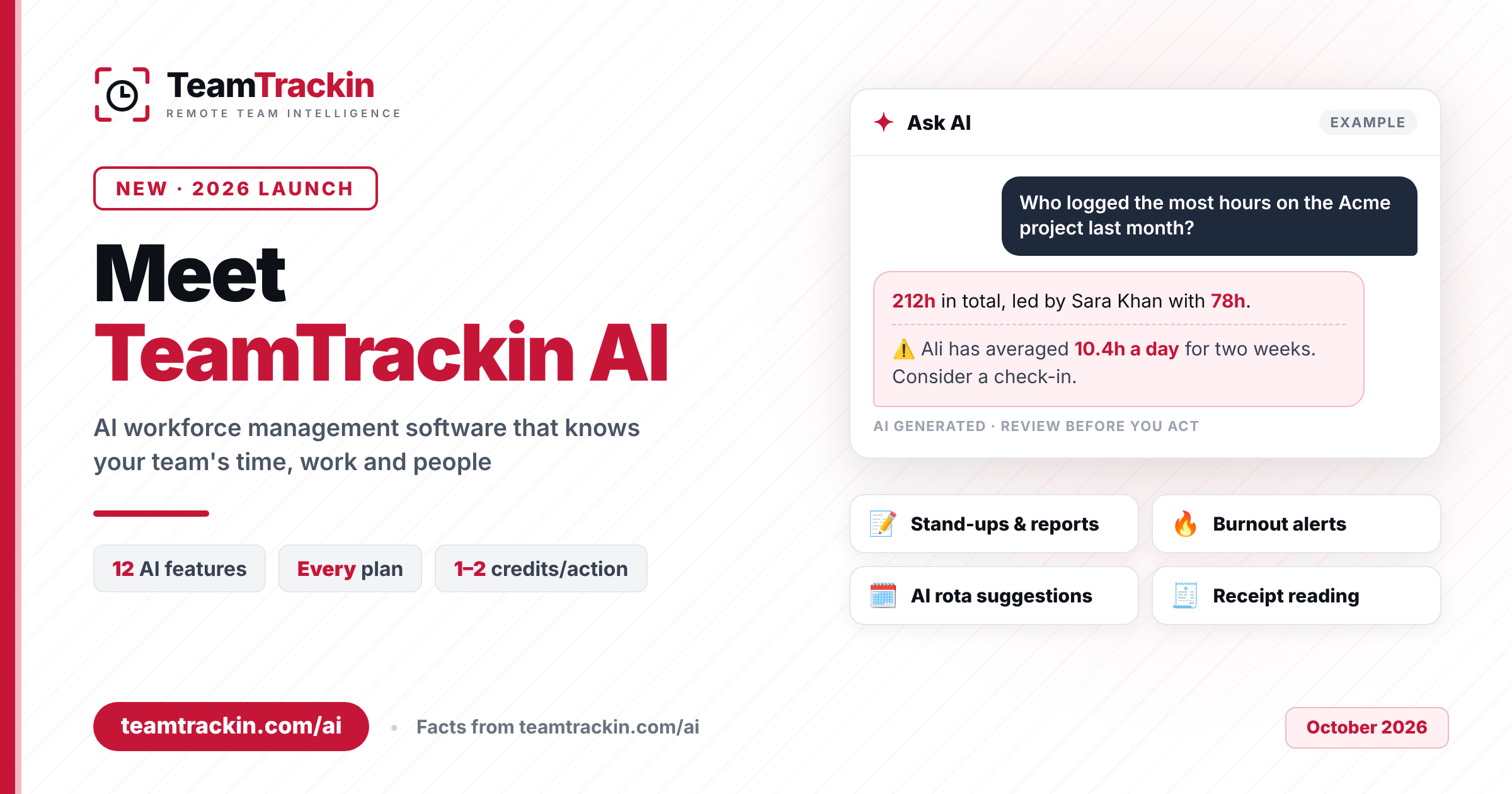
AI workforce management software uses artificial intelligence on your own time, project, HR and shift data to answer questions, write reports and flag problems before they grow. TeamTrackin AI is the assistant built into TeamTrackin: it knows your team's hours, tickets, leave and rotas, and it is included on every plan with monthly AI credits. This guide explains what it does, how it keeps your data private, what it costs and how to start.
TeamTrackin AI is an AI assistant built into TeamTrackin's workforce management software that answers plain-English questions about your team's hours, tickets, leave and invoices, summarises long threads, drafts stand-ups and reports, flags burnout risk and suggests fair shift rotas. It only reads what each person can already see, your data is not used to train AI models, and nothing changes until a person applies it.
AI is included on every plan with monthly credits: Basic 50, Standard 300, Premium 1,000, Enterprise 3,000 and Shift 100. Most actions use 1–2 credits, and extra credit packs start at £5 for 500 credits and never expire. TeamTrackin plans start at $3.99 per user per month, with a 14-day free trial and no credit card.
What Is AI Workforce Management Software?
AI workforce management software is a workforce platform (time tracking, attendance, projects, HR, leave, payroll records and shift scheduling) with an AI assistant that works on the data already inside it. The platform records who worked, when, on what and at what cost. The AI turns that record into answers, summaries, drafts and early warnings.
Classic workforce management software is very good at collecting data and weak at explaining it. A manager who wants to know who is overloaded this month opens three reports, exports two CSVs and builds a pivot table. With AI in the same system, they type the question and get the answer, with the numbers behind it.
Three things separate useful AI workforce management software from a chatbot bolted onto a dashboard:
- It uses your real data. Answers come from tracked time, tickets, leave, rotas and documents in your workspace, not from the open internet.
- It respects permissions. An employee asking a question should never see data their role cannot already open.
- A person stays in charge. The AI suggests and drafts; a manager reviews and applies. Nothing about pay, shifts or tickets changes on its own.
AI workforce management software is a time, project, HR and scheduling platform with a built-in AI assistant. It answers plain-English questions from your team's real data, summarises work, drafts reports, flags risks such as long hours, and suggests actions like filling open shifts, while a person reviews and approves every change.
What Is TeamTrackin AI, and What Is New?
TeamTrackin AI is the assistant built into TeamTrackin, the all-in-one platform for time tracking, activity insights, projects and boards, HR, leave, timesheets, payroll records, client invoicing and shift management. It is not a separate app or a paid add-on. It sits inside the screens your team already uses, behind a ✦ Ask AI button in tickets, documents, Insights and Shifts.
Because TeamTrackin already holds your team's time, work and people data in one place, the assistant can answer questions that cross those areas. Ask "Who logged the most hours on the Acme project last month?" and the example on the TeamTrackin AI page shows the answer you get back: the project total, the person with the most hours, and a note that one team member has averaged over ten hours a day for two weeks, with a suggestion to check in.
TeamTrackin AI launches with twelve capabilities across five jobs managers do every week:
- Finding answers: Ask TeamTrackin, and answers from your own docs.
- Writing: summaries, writing help, stand-ups and weekly reports.
- Running projects: smarter tickets, and meeting notes turned into tickets.
- Looking after people: team summary and burnout alerts, AI rota suggestions and receipt reading.
- Getting started: a setup coach, plus privacy controls built into everything.
TeamTrackin AI is included on every plan with a monthly allowance of AI credits. There is nothing to install: it is already on.
How Do You Use AI in Workforce Management?
You use AI in workforce management by asking it the questions you would otherwise answer with reports, and by letting it draft the routine writing your team produces every week. In TeamTrackin that takes four steps, and the first needs no effort at all.
AI is already on
There is nothing to install or configure. TeamTrackin AI is switched on for admins and team members as soon as your workspace exists; contractors are off by default.
Click ✦ Ask AI
Open a ticket, a document, Insights or Shifts and click the ✦ Ask AI button, or ask a question about your team in plain English.
Review, then apply
Read the answer, summary or suggestion. Every result is labelled as AI generated, and nothing changes in TeamTrackin until a person applies it.
Track credit usage
Admins see AI usage by feature in Company settings, alongside the monthly credits included in the plan and any credit packs bought.
Good first questions are the ones you already ask in meetings: hours by person, project or day; which tickets are overdue; who is off next week; who has worked overtime; and which invoices are still outstanding, per currency.
TeamTrackin AI is already switched on, so there is no setup. Open a ticket, a document, Insights or Shifts, click the ✦ Ask AI button, and ask a question or pick an action. Review the result, which is always labelled as AI generated, and apply it only if you agree.
What Can TeamTrackin AI Do? All 12 Features Explained
Here is every TeamTrackin AI capability, what it does and where it saves time. Each one works on data already in your workspace.
Ask TeamTrackin
Ask questions about your company in plain English and get answers from your real data: hours by person, project or day; overdue tickets, who is off and overtime; and outstanding invoices, per currency.
Summaries in one click
Long ticket threads and support chats become five lines: what happened, the decisions made, open questions and next steps. Useful when you pick up a ticket after a week away or hand a client issue to a colleague.
Writing help everywhere
Improve, shorten, fix, change the tone of, or translate a page, or turn rough notes into an SOP, right inside Documents.
Stand-ups and weekly reports
Your stand-up (yesterday, today, blockers) and weekly report are written from your own tracked time and tickets, with time per ticket and project, weekly highlights and risks, ready to paste.
Smarter tickets
Draft test cases and acceptance criteria, get an effort estimate from similar finished work and its real tracked time, triage client tickets with type, priority and assignee suggestions, and catch duplicates before they are created.
Team summary and burnout alerts
A fortnightly read of your team's workload: highlights, unusual drops or spikes, long days and weekend work, with kind next steps and suggested check-ins.
Answers from your docs
Ask how your company does something and get an answer from your own SOPs and policies, with links to the pages used. It respects page permissions and says so when your docs do not cover the question.
Meeting notes to tickets
Paste meeting notes or a transcript and AI pulls out the action items, with owners from your team, due dates and priorities. You pick which ones to create, and they go straight into the backlog.
AI rota suggestions
Fill the week's open shifts with people who are free, qualified and within rest rules, fairly spread and ready to assign. It takes availability and time off into account, and you can assign one suggestion or all of them.
Receipt reading
Snap or upload a receipt, as a photo or PDF, and the benefit claim fills itself with the merchant, date, amount and currency. The employee checks it, then submits.
Setup coach
New to TeamTrackin? The coach looks at what you have set up and recommends the next most valuable steps, tailored to your company, with links straight to the right screen. You can hide it any time.
Private by design
AI only reads what each person can already see, never trains on your data, and nothing changes until a person applies it. Admins have an on/off switch.
Microsoft and LinkedIn's 2024 Work Trend Index found that 78% of people who use AI at work bring their own tools. That means company data is pasted into apps the business does not control. An assistant built into your workforce platform does the same jobs inside your existing permissions, without copying data out.
How Does AI Help Managers, HR and Operations Teams?
AI helps workforce teams most where they spend time gathering and rewriting information rather than deciding. Here is how TeamTrackin AI fits the four roles that usually buy workforce management software.
Start with the question you ask most often in your Monday meeting. If AI answers it in seconds, that is time back every week.
Ask your first question about your team today
TeamTrackin AI is included on every plan, with no setup — try it free.
Can AI Detect Employee Burnout?
AI cannot diagnose burnout, and no responsible tool should claim to. What it can do is notice the patterns that often come before it, long before anyone says something in a one-to-one. Those patterns are already in your time data: long days, weekend work, and sudden spikes or drops in hours.
TeamTrackin AI's team summary reads your team's workload every fortnight. It reports highlights, unusual drops or spikes, long days and weekend work, and suggests kind next steps such as a check-in. In the example on the TeamTrackin AI page, a project question surfaces that one person has averaged more than ten hours a day for two weeks.
| Signal | What TeamTrackin AI flags | What a manager does next |
|---|---|---|
| Long days | People consistently working well past a normal day | Check in, rebalance tickets or shifts |
| Weekend work | Time tracked on weekends | Ask whether a deadline or workload is the cause |
| Unusual spikes | A sudden rise in hours compared with normal | Look for a project crunch or a missing colleague |
| Unusual drops | A sudden fall in hours or activity | A supportive conversation, not a warning |
This matters for managers as much as their teams. Gallup's State of the Global Workplace 2025 report found that manager engagement fell from 30% to 27% in 2024. Managers are stretched, so a fortnightly summary that tells them where to look is worth more than another dashboard. Source: Gallup, State of the Global Workplace.
Treat every burnout alert as a reason to talk, not as proof of anything. Hours data cannot see a sick relative or a personal deadline. The value is that the conversation happens in week two, not month three.
Is AI Safe to Use With Employee Data?
AI is safe to use with employee data when it follows the same access rules as the rest of your system, does not keep or train on what you send it, and cannot act without a person. Those are the questions to ask any vendor, and here is how TeamTrackin AI answers them, based on its product page.
| Role | TeamTrackin AI access |
|---|---|
| Admins | Use AI and manage it, including the on/off switch and usage by feature |
| Team members | Use AI on the data their role can already see |
| Contractors | Off by default |
No. TeamTrackin AI drafts, summarises and suggests, but nothing in your workspace changes until a person reviews the result and applies it. That covers tickets created from meeting notes, rota suggestions and receipt-filled claims. Every result is labelled as AI generated, and admins can switch AI off.
How Much Does TeamTrackin AI Cost?
TeamTrackin AI is included on every plan. Each plan comes with a monthly allowance of AI credits, and most actions use one or two. If you run out, you buy a credit pack once and it never expires. Full prices are on the TeamTrackin pricing page.
| Plan | Price (monthly billing) | AI credits a month | Best for |
|---|---|---|---|
| Basic | $3.99 per user | 50 | Time tracking, activity insights and basic reports |
| Standard | $5.99 per user | 300 | Adds projects, boards and tickets, leave, timesheets and payroll records |
| Premium (Most Popular) | $7.99 per user | 1,000 | Adds HR automation, documents, client portal and invoicing |
| Shift | $4.99 per user | 100, with AI rota suggestions | Field teams: rotas, GPS clock-in and attendance |
| Enterprise (100+ users) | Custom, fixed yearly payment | 3,000 | Everything in Premium, plus custom terms and priority support |
Credit use varies by action, so treat these as ranges. Admins can see usage by feature in Company settings, so you can tell which AI features your team uses most before deciding whether you need more credits.
Yearly billing saves 10% on TeamTrackin plans. Existing Basic, Standard and Premium customers can add shift features per field seat instead of switching to the Shift plan.
AI Workforce Management Software vs Traditional WFM Software
Traditional workforce management software records the data and leaves the analysis to you. AI workforce management software does the first draft of the analysis and the writing. Here is the difference on everyday jobs.
| Everyday job | With TeamTrackin AI | Traditional WFM software |
|---|---|---|
| Who worked most on a project? | Ask in plain English, get the answer from real data | Run a report, filter, export, sort |
| Weekly report and stand-up | Drafted from tracked time and tickets, ready to paste | Written by hand from memory and timesheets |
| Spotting overwork | Fortnightly team summary flags long days and weekend work | Noticed when someone complains or leaves |
| Filling open shifts | Suggestions that respect availability, qualifications and rest rules | Phone round and spreadsheet |
| Meeting actions | Notes turned into tickets with owners and due dates | Someone types them up, or they get lost |
| "How do we do this?" | Answer from your SOPs, with page links | Search the wiki or ask a colleague |
| Expense claims | Receipt photo fills merchant, date, amount and currency | Typed in by hand |
AI does not replace your managers or HR team. It removes the gathering and rewriting so they spend their time on the decisions and conversations only people can have.
How to Choose AI Workforce Management Software
Many tools now have "AI" on the pricing page. Use these six questions to tell a real assistant from a marketing label.
Does it answer from your own data?
The assistant should know your team's hours, tickets, leave and rotas. If it can only write generic text, it is a writing tool, not workforce AI.
Does it follow your permissions?
Ask the vendor directly: can an employee use AI to see data their role cannot open? The only right answer is no.
Is your data used for training, and is it stored?
Get a clear statement in writing. TeamTrackin states that data is not used for training and that prompts and answers are not stored.
Does a person approve every change?
AI that edits tickets, rotas or pay records on its own creates risk. Look for review-then-apply and clear "AI generated" labels.
Is the pricing clear?
Check whether AI is included on every plan or sold as an add-on, how usage is measured, and what happens when you run out.
Does it cover your whole team?
Desk, remote and field staff should be in one system, or the AI only sees part of the picture. Rota suggestions are worthless if your shift workers live in a different app.
During a free trial, ask the AI something you already know the answer to, such as last month's hours on your biggest project. If the answer matches your report, you can trust it with the questions you do not know.
How TeamTrackin Brings AI to Workforce Management
TeamTrackin AI works because of the platform under it. TeamTrackin already tracks time on Windows, macOS and Linux, runs projects and boards, manages leave, timesheets and payroll records, and schedules field shifts with GPS clock-in on its mobile app. The assistant uses all of that, so its answers cover your whole team rather than one tool's slice. See the full workforce management platform.
AI works inside the TeamTrackin tools on your plan. Asking about hours and the team summary run on time data every plan has; ticket features run on boards; answers from docs and writing help run in Documents and the knowledge base; and rota suggestions run in Shift. New to the product? The TeamTrackin user guide walks through each area step by step.
| AI feature | Works in | Plans with that tool |
|---|---|---|
| Ask TeamTrackin (hours), team summary, setup coach | Time tracking and Insights | Basic, Standard, Premium, Enterprise |
| Stand-ups, smarter tickets, meeting notes to tickets, summaries | Projects, boards and tickets | Standard, Premium, Enterprise |
| Receipt reading | Benefits and claims | Standard, Premium, Enterprise |
| Answers from your docs, writing help | Documents and SOPs | Premium, Enterprise |
| Outstanding invoices | Client invoicing | Premium, Enterprise |
| AI rota suggestions | Shift management | Shift plan, or the Shift add-on on any plan |
Frequently Asked Questions
- What is AI workforce management software?
AI workforce management software is a workforce platform that uses artificial intelligence on your own time, project, HR and shift data. Instead of building reports by hand, managers ask questions in plain English, get summaries and drafts, see early warnings such as long hours, and get suggestions like who could fill an open shift. A person still reviews and approves every change.
- Can AI detect employee burnout?
AI cannot diagnose burnout, but it can spot warning signs in work data. TeamTrackin AI's team summary reviews workload every fortnight and flags unusual drops or spikes in hours, long days and weekend work, then suggests a check-in. Treat these as signals for a conversation with the person, not as proof or a medical judgement.
- Is our data used to train TeamTrackin AI?
No. TeamTrackin says your data is not used to train AI models, and prompts and answers are not stored. The assistant uses enterprise-grade AI through a business API, only reads what each person is already allowed to see, labels every result as AI generated, and changes nothing until a person applies it.
- How do TeamTrackin AI credits work?
Every plan includes monthly AI credits: Basic 50, Standard 300, Premium 1,000, Enterprise 3,000 and the Shift plan 100. Most actions use 1 to 2 credits. If you need more, credit packs start at £5 for 500 credits and never expire. Admins can see AI usage by feature in Company settings.
- Is TeamTrackin AI included on every plan?
Yes. TeamTrackin AI is included on every plan, from Basic at $3.99 per user per month to Enterprise, with a monthly allowance of AI credits. It is already switched on with no setup, admins can turn it off, and contractors are off by default. You can try it on a 14-day free trial with no credit card.
Stop digging through reports for answers.
Ask your team's data with TeamTrackin.
Time tracking, projects, HR, payroll records and shift scheduling with TeamTrackin AI included on every plan, from $3.99 per user per month. Try it free for 14 days.
Start Free Trial→14-day free trial · No credit card · AI included on every plan